

What is Biosimulant? Start with a question, keep the work
- Written by
- demiBiosimulant team1 hour ago
- Replies
- 0
- Last activity
You ask an agent to investigate a model. It finds a few sources, explains the equations and suggests an experiment. A week later, you want to continue. Which version did it inspect? Where did the assumptions go? Did it actually run anything?
Biosimulant is a research workspace for working with biological models and computational experiments. You work with an agent, while Studio lets you inspect the plans, files, Lab revisions, runs and evidence saved through Biosimulant. The Hub is where you find public Labs to learn from or reuse.
The practical reason to use it is continuity. You can inspect a model before running it, keep the setup behind a result, and return to the same saved investigation with another agent or collaborator. Reusable Labs can contain existing models or your own components; the open-source Python runtime handles their declared connections and execution. This walkthrough starts with the research record, so you do not need to build a model first.
For a first visit, start small: find a public predator–prey Lab, review what it assumes and save a short research note. You do not need to run a simulation or install the Python runtime to do this.
The few terms you need
A session records an investigation around a question. A Lab holds the setup and its saved work. Creating a durable session gives it a private Lab, even when the investigation never needs compute. That does not mean a working model has already been built.
A model is a component that does a particular calculation. A runnable Lab contains one or more model components and defines how they fit together. A run executes a particular Lab revision with particular inputs.
Evidence supports the work: sources, requirements, checks and reviews. A successful calculation and a scientifically useful answer are separate things. You still need to ask whether the model fits your question. The Labs, runs and files guide explains these records in more detail.
1. Give your first session a manageable goal
Sign in to Studio. If you already have a session open, choose New.
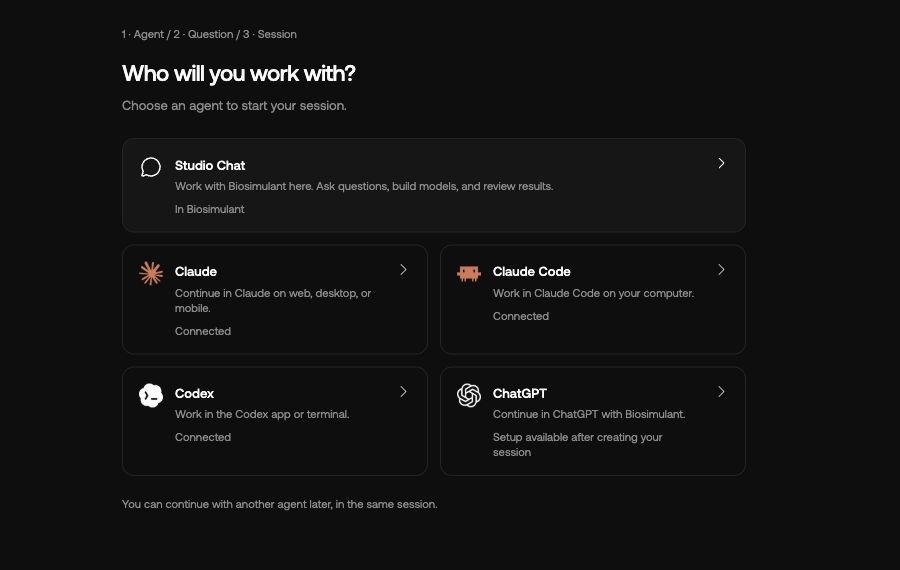
The setup starts with Who will you work with? Choose your agent. If it needs connecting, follow the setup shown for that client before continuing.
On the question step, enter this in What should your agent work on?:
Inspect the public Lotka–Volterra System Lab. Explain its assumptions, identify its inputs and suggest one comparison a beginner could make. Save a short research note with the source link. Do not run simulations, change models or publish scientific results.
This gives the agent something specific to finish. It also makes the boundary clear: today's outcome is a saved review and a proposed experiment.
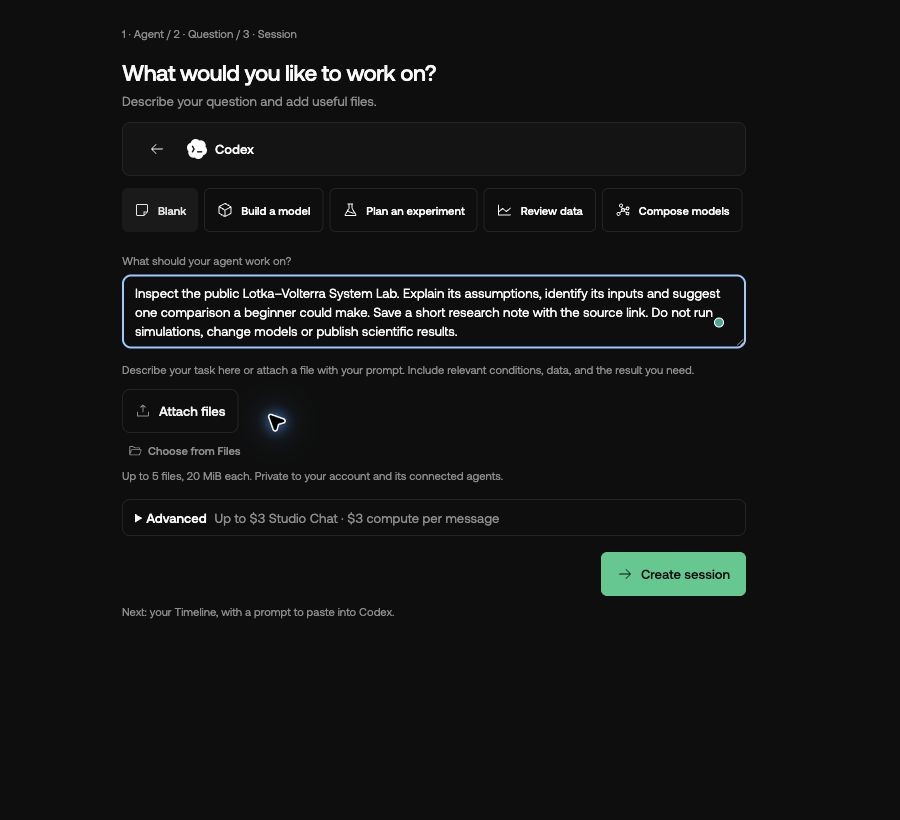
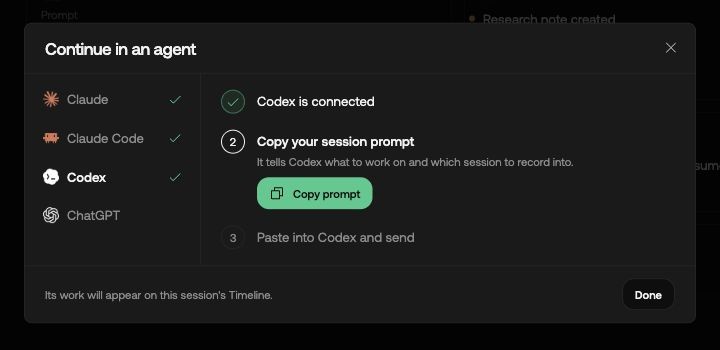
Select Create session. Studio opens the session's Summary. In its Chat card, select the saved question text to open Session prompt, then choose Use in an agent. Select your assistant and Copy prompt. Paste the copied prompt into that assistant and send it.
2. Check that your agent joined the right session
Ask the agent to confirm it has attached to the session you just created. Creating a session in Studio does not, by itself, send your question to an external assistant. The generated prompt tells it which investigation to join.
If you cannot use the copy controls, give the assistant the session URL from your browser, your goal and an explicit request to resume that existing session. Keep the link in your own conversation; you do not need to publish it.
Then let it inspect the public Lab. You can also open the Hub, find Lotka–Volterra System Lab and read its description and caveats yourself. Note the release the agent actually reviews, rather than assuming it is the same one you saw previously. This walkthrough inspected release 1.1.0.
This example is useful because its limits matter. A simplified predator–prey model can help explore how its equations respond to changing starting populations or rates. Before treating a pattern as a prediction about real animals, you would need to examine the biological assumptions and supporting data. Ask the agent to distinguish what the Lab's documentation states from its own interpretation.
You can read the public Lab and plan a comparison without starting a run.
3. Inspect the saved note
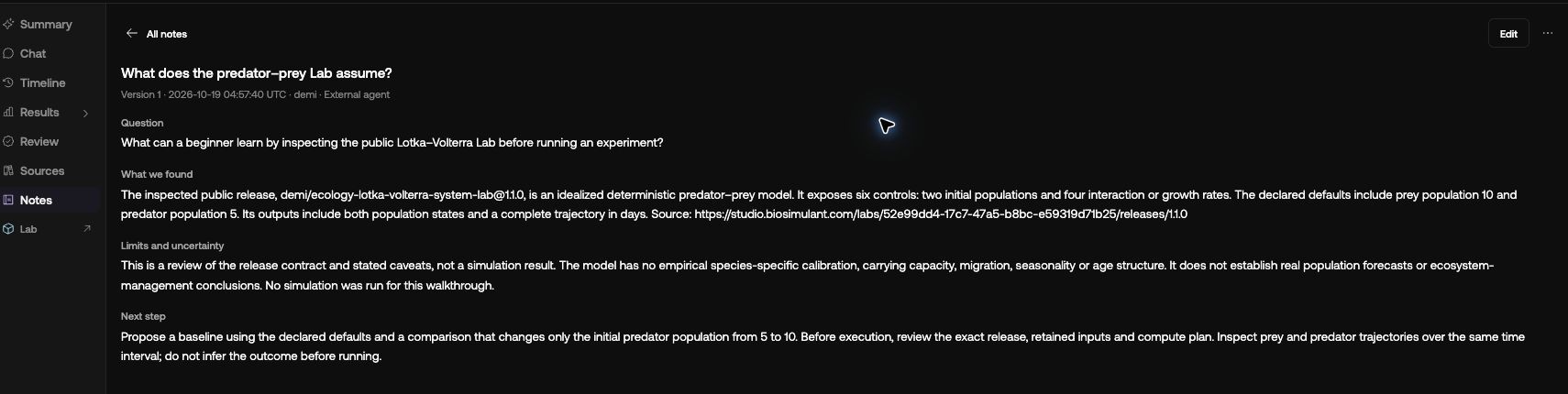
Return to Studio, open the session and select Notes. The note in this walkthrough is titled What does the predator–prey Lab assume? A useful note names the Lab and release, explains the assumptions, links the sources it inspected and describes one proposed comparison.
Our note identifies six controls: the two starting populations and four rate coefficients. It also flags missing carrying capacity, seasonality and species-specific calibration. Its proposed comparison changes the starting predator population from 5 to 10, holding everything else fixed. That is a plan for a later experiment; no simulation was run to produce this note.
An assistant's reply is not automatically a saved Studio document. If you cannot find the note, ask:
Please save the review as a note in this session, then tell me its title so I can find it under Notes.
If the agent saved a workspace file instead, ask for its exact location. A file and a session note appear in different places. The recorded-investigation guide explains saved-work checks and common connection problems, although its setup screenshots may differ from the current interface.
4. Know what you have finished
You should now have a session you can reopen, an identified public Lab and a research note you can find. An empty Results view is expected: you asked for a review, not a run.
When you are ready to calculate something, ask your agent to propose the exact Lab revision, inputs and comparison first. After a run, inspect its recorded inputs and outputs alongside the interpretation. A plot alone does not explain how it was produced or whether its assumptions fit your question.
The reason to start this way is practical. Your next conversation can begin with the saved investigation instead of a reconstruction from memory. You have a question, a candidate Lab and a written account of what needs checking before you trust its results.