

How to connect Claude, Codex, or Antigravity to a Biosimulant session
- Written by
- demiBiosimulant team1 hour ago
- Replies
- 0
- Last activity
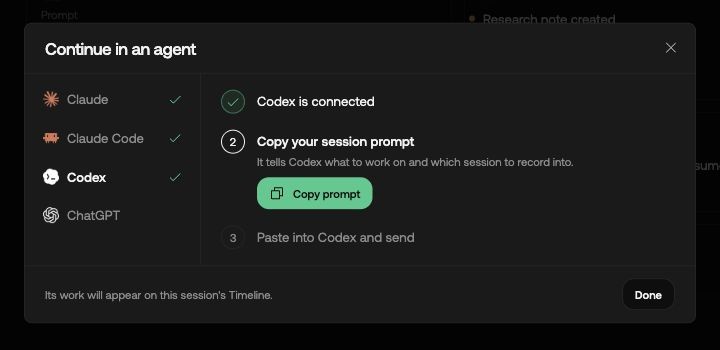
You have a research session open in Biosimulant and want to keep working in Claude, Codex, or Antigravity. The useful part is being able to return to the same investigation: its saved plan, evidence, Lab changes, and results.
There are two steps. First, connect the assistant to your Biosimulant account. Then give it the prompt for the session you want to use. A working account connection alone does not tell the agent which investigation to join.
This guide uses the production service. You need a Biosimulant account, access to the session, and an assistant that supports remote MCP connections. MCP is the connection that lets your assistant use Biosimulant's tools; you do not need to install the Biosimulant simulation runtime just to connect.
1. Pick your assistant and connect it
Every route below uses this public server address:
https://api.biosimulant.com/mcp
If Biosimulant is already connected to that address, reuse the connection. Finish any requested sign-in rather than adding a duplicate.
Claude in a browser
- Open Claude's connector settings. You can also reach them through Customize → Connectors.
- Choose Add → Add custom connector. Some versions put this under Custom → Web.
- Name the connection Biosimulant and enter the server address above.
- Continue through discovery. Choose Sign in now and Register automatically when those choices appear, then add the connector. Leave custom request headers empty.
- Sign in to Biosimulant and review the access request.
- Open a new Claude chat. Use + → Connectors to enable Biosimulant for that chat.
Labels can vary between app versions. The Biosimulant Claude guide includes the full walkthrough.
Claude Code in a terminal
Open Claude Code and type /mcp to check for an existing connection. If none is available, exit to your normal terminal and run:
claude mcp add --scope user --transport http biosimulant https://api.biosimulant.com/mcp
Start Claude Code again, open /mcp, select Biosimulant, and finish authentication in your browser. The --scope user option makes the setup available across projects on this computer. A connector you already authenticated on Claude web may also be available, depending on how you signed in to Claude Code. See the Claude Code setup guide and Anthropic's MCP documentation.
Codex on your computer
Open Settings → MCP servers. Add a server named biosimulant, choose Streamable HTTP, and paste the public server address above. Save, restart if prompted, and choose Authenticate to complete browser sign-in. Start a new chat and use /mcp to inspect the connection.
If you prefer guided setup, Biosimulant's Codex guide also provides a prompt you can give a local Codex chat. That prompt sets up the connection; you still need the separate session prompt in step 3 below.
For terminal users, first check codex mcp list. Add the server if missing:
codex mcp add biosimulant --url https://api.biosimulant.com/mcp
Then follow the authentication command in the Codex CLI guide, which lists the requested Biosimulant scopes. Start a fresh Codex chat afterward. OpenAI documents the underlying connection and login options in its MCP guide.
Antigravity: the manual MCP route
Antigravity supports custom remote MCP servers and OAuth. Biosimulant's current app picker does not list Antigravity, and this route has not been verified end to end against Biosimulant.
In the Antigravity IDE, open … → MCP Servers → Manage MCP Servers → View raw config. Add this server entry to the existing mcpServers object, keeping your other servers:
{
  "mcpServers": {
    "biosimulant": {
      "serverUrl": "https://api.biosimulant.com/mcp"
    }
  }
}
Use serverUrl; Google's current documentation says legacy url and httpUrl fields are unsupported. Refresh the configuration. In Settings → Customizations, authenticate Biosimulant and follow the browser handoff. Keep any authorization code inside the client’s authentication flow, never in an agent prompt.
Confirm account access in step 2 before sending a session prompt. If sign-in or tool discovery fails, use Claude or Codex for the session while investigating the connection. See Google's current MCP instructions.
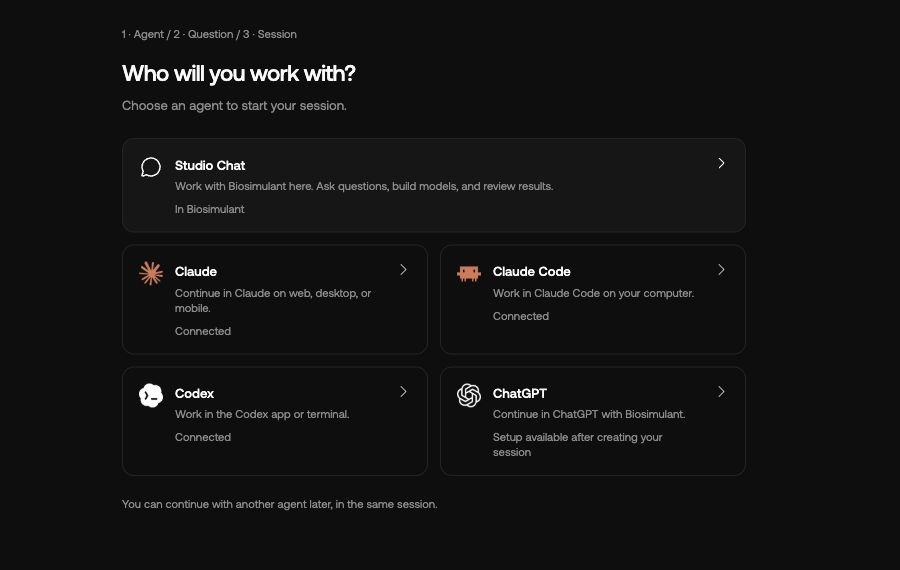
Studio shows which supported assistants already have an account connection. You can continue with another agent in the same session.
2. Check whose account the agent can see
In the connected assistant, send:
Before we start, use Biosimulant to check the account this connection belongs to. Tell me whether it is a personal or team connection. Stop after checking; do not create work or run a model.
Make sure the answer matches the account and context you intended. During Biosimulant sign-in, Connect for lets you choose a personal connection or a specific team. A team connection is limited to that team's work. If your session is elsewhere, the connection may be working correctly but unable to open it. Connection help explains the access choices.
3. Give the agent your existing session
Open your investigation in Biosimulant Studio, then:
- Select Summary in the session's navigation.
- In its Chat card, click the saved question text labelled Prompt. This opens the Session prompt dialog.
- Select Use in an agent. Choose Claude, Claude Code, or Codex in the Continue in an agent dialog.
- Complete any connection setup shown there. When your assistant is connected, select Copy prompt.
- Switch to that assistant, paste the prompt, and send it. Copying alone does not start the external agent.
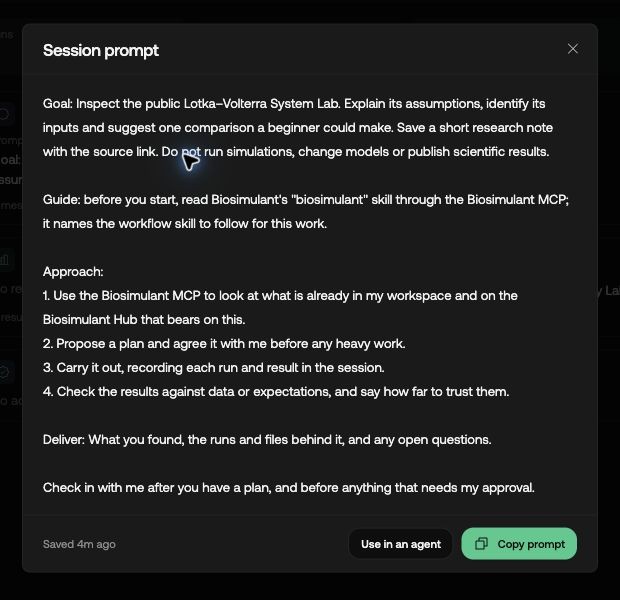
The saved question opens from the Chat card on Summary. Use in an agent takes you to the connection and handoff steps.
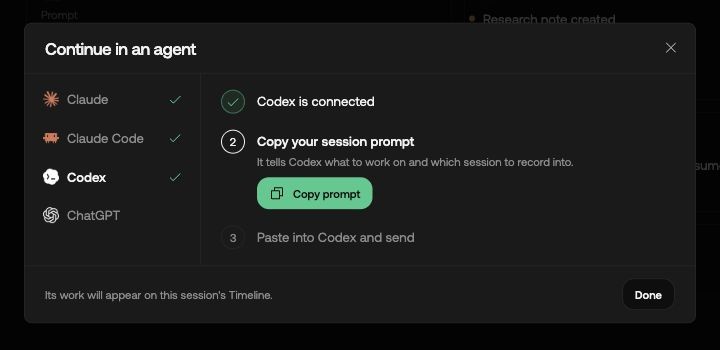
A connected account is step one. Copy the session prompt, paste it into the selected assistant, and send it there.
The generated prompt identifies the session and includes the saved context. Keep that information when adding your next request. For a first check, you can append:
Confirm the session you joined. Read its saved state, explain what is finished and what needs a decision, then propose one next step. Wait before running, editing, or publishing anything.
For Antigravity, which is not in the picker, the Copy prompt button in the Session prompt dialog lets you copy the handoff directly. Paste it into Antigravity only after the connection check in step 2 succeeds.
If you cannot find the prompt controls, copy the session URL from your browser and use this fallback in your connected assistant:
Use the Biosimulant connector to continue my existing session:
[PASTE YOUR SESSION LINK HERE]

Attach this conversation to that session. Read its current saved state,
plan, evidence, pending approvals, and execution limits before doing work.
Do not create a replacement session or redo completed work.

Confirm which session you joined. Summarize what is finished and what
still needs a decision, then propose one next step. Do not run, edit,
or publish anything yet.
Keep the actual link in your private assistant conversation. It identifies the investigation; it does not grant access to someone else's work.
Starting from scratch instead? Choose New. In the Agent → Question → Session flow, pick your assistant under Who will you work with?, enter your question, and select Create session. Studio opens Summary. Follow the steps above to send the session prompt to your assistant.
4. Check that the record is actually being saved
Return to Studio. Look for the plan or progress the agent says it recorded in Timeline, saved documents in Notes, sources in Sources, and checks or decisions in Review. Results contains run outputs, so it can stay empty when your request only involved reading and planning.
If the agent says it saved a document but you cannot find it, ask for its exact location. A file in the Lab workspace and a session document are different things. An answer that exists only in Claude or Codex has not necessarily been saved in Biosimulant.
Changing assistants also does not copy the old assistant's private conversation or transfer its execution approvals. The new assistant continues from the saved research record. Read more about what sessions retain.
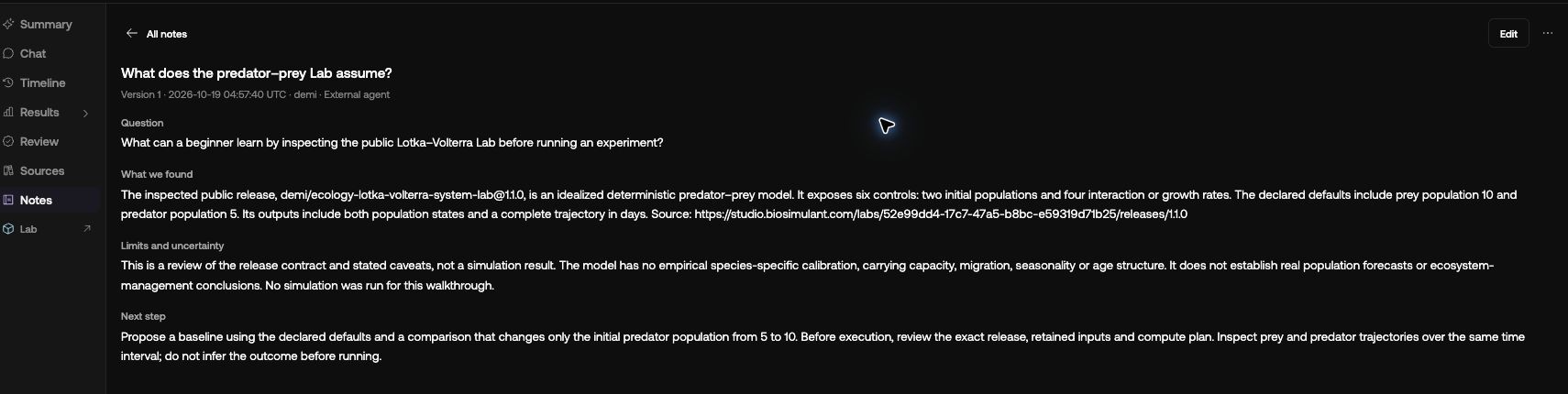
This saved note records an inspection of a public Lab. It states the model’s limits and makes clear that no simulation was run.
If you get stuck
| What you see | What to try |
|---|---|
| Studio is still waiting for the agent | Enable the connector in the assistant, send the session prompt there, and ask it which session it joined. |
| The browser signed in, but there are no tools | Refresh or reauthenticate the connection, then start a new assistant chat. In Claude, check that the connector is enabled for that chat. |
| The session cannot be found | Check the account, personal/team context, and server address. A staging session is not available through the production server above. |
| You cannot find or copy the session prompt | Copy the session URL from your browser and use the explicit continuation request above. |
| A terminal command is rejected | Check the installed CLI version and its MCP help. Updating the desktop app may not update the terminal CLI. |
You have finished when the assistant confirms the correct session, reads its current state, and the material it reports saving can be found in Studio or the linked Lab workspace. From there, ask for the next small piece of work and review any proposed changes or runs before approving them.