

How to share a Lab in Biosimulant
- Written by
- demiBiosimulant team1 hour ago
- Replies
- 0
- Last activity
You have a Lab worth showing someone. Perhaps a colleague needs to check your assumptions, a collaborator wants to change the model, or you want other researchers to try the work for themselves.
Start by deciding who should have access. For a named collaborator, keep the Lab private and invite them. For a wider audience, make it public, check what visitors can see, and send its link.
This guide covers both routes, including how to check the result and withdraw access later. You will need a Lab you own or one where you have Admin access.
Choose the right kind of sharing
| What you want someone to do | What to use |
|---|---|
| Review your private work | Invite them as a Viewer |
| Change the Lab and work in its sessions | Invite them as an Editor |
| Manage people and Lab settings with you | Invite them as an Admin |
| Read the Lab without an invitation or sign-in | Make it Public |
| Run or adapt a public Lab independently | Ask them to Fork it into their own private Lab |
A copied link does not grant access to a private Lab. The recipient still needs to accept an invitation or already belong to its owning team.
Share privately with a colleague
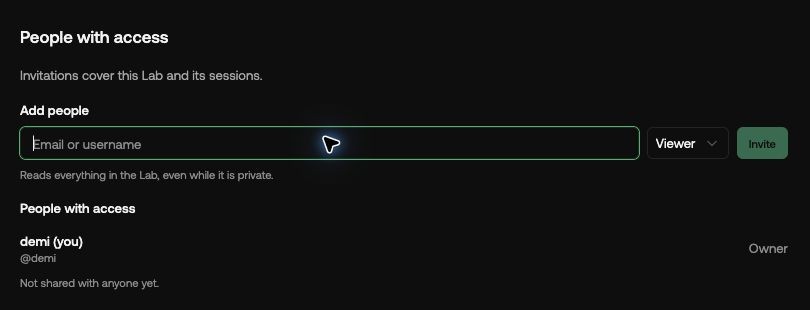
Open your Lab in Biosimulant Studio and go to Settings. Find People with access.
In Add people, enter the recipient's email address or Biosimulant username, choose a role, and click Invite.
Viewer is a good choice for someone reviewing the work. They can read everything in the Lab, including its sessions, while it remains private. An Editor can also change and run the Lab and work in its sessions. An Admin can additionally manage access and settings.
Take a moment over that distinction: inviting someone into the Lab gives them member access. The switches that limit what public visitors see do not hide content from Lab members.
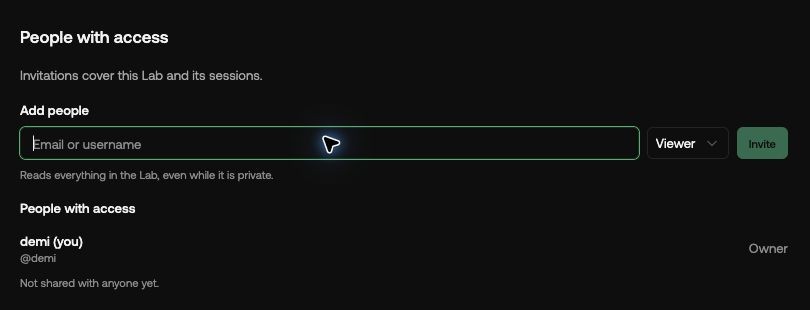
The recipient opens the invitation, signs in with the account it was sent to, and selects Accept and open the Lab. If they do not yet have an account, they should use the invited email address when signing up.
While they are deciding, the invitation appears under Waiting to accept. Once accepted, they appear in People with access.
If the invitation email cannot be delivered, Biosimulant shows an invitation link you can copy and send to that person yourself. Keep this separate from the ordinary Lab link: the invitation is how they join; the Lab link is how they return to the work.
Now use Share Lab → Copy link to send the Lab's usual address. Add a sentence explaining what you want reviewed: “Please check the parameter ranges in the model and the assumptions behind the baseline run” is more useful than an unexplained link.
Share publicly
Public sharing suits a tutorial, an example model, or research you are ready for other people to inspect. Anyone with the link can open a public Lab, including someone who is signed out.
Before changing visibility, review Settings → Visible in this Lab. This controls what visitors who are not Lab members can see. Read the descriptions beside the switches and keep only the material you intend to share.
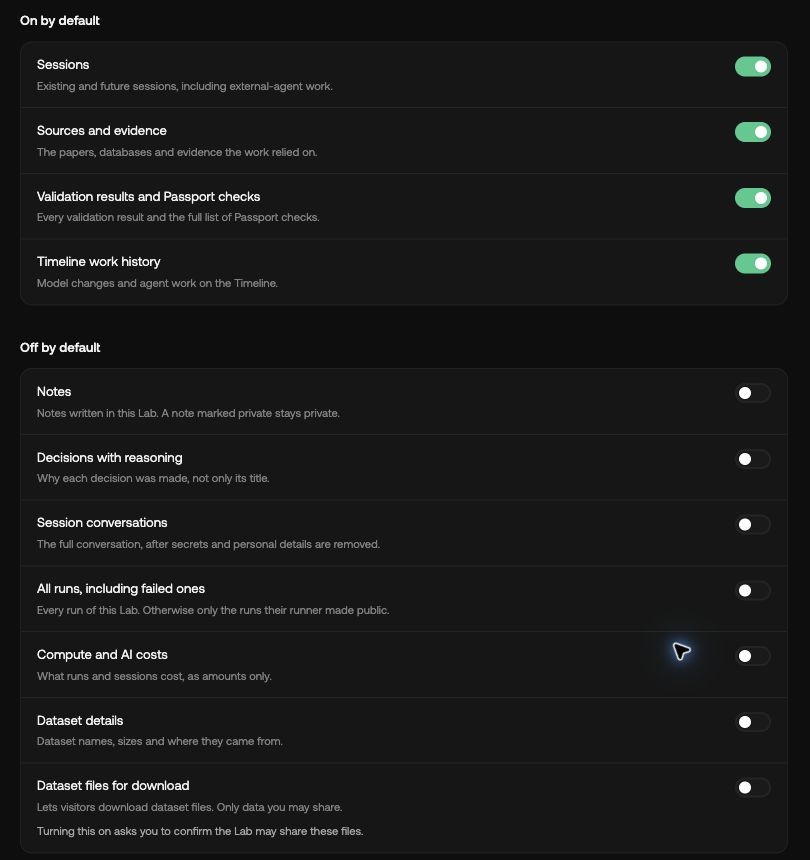
This review includes the Lab's sessions. Making a Lab public applies to its existing and future sessions according to these content settings. A session that was created while the Lab was private does not stay separately private.
For example, you might want visitors to see your model, its assumptions, sources and validation, while leaving full conversations, detailed datasets and costs out of the public view. Review your own saved settings rather than assuming the defaults match that choice. If you enable dataset downloads, Biosimulant asks you to confirm that you have permission to share those files.
Save your changes. In Settings, find Change this Lab → Who can see it, select Make public…, and confirm Make public.
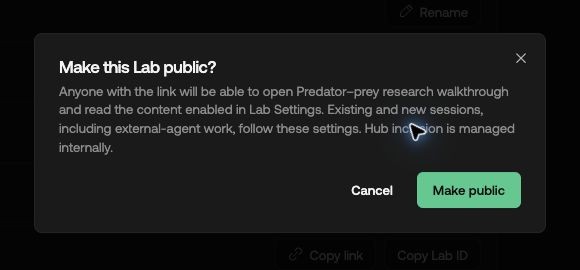
Public access lets people read the enabled content. It does not give them permission to edit your Lab, invoke its agent or spend your credits.
Check what your recipient will actually see
For a public Lab, return to the visible-content settings and select See as a visitor. This shows the saved public view rather than your full member view. If you have unsaved changes, save them before judging the preview.
Look for the material someone needs to understand the work: the model's purpose, inputs and units, assumptions, an example result and its limitations. Then check that anything you intended to keep private is absent.

Copy the Lab link with Share Lab → Copy link. Opening that link in a signed-out browser window is a useful final check that a public reader can reach the Lab.
For a private invitation, check that the recipient appears in People with access and ask them to open the Lab in their own signed-in account. Your owner view cannot confirm their access for you.
Help someone reuse your Lab
A public reader who wants to run or modify the work should choose Fork. This makes an independent private Lab with copied model files and reusable scientific material. It does not copy your sessions, collaborators, credentials or live compute, and creating the fork does not start a run.
If the person should work with you in the original Lab, invite them as an Editor instead.
A public Lab can continue changing. When you cite a particular result, include its run record or exact saved-model reference as well as the main Lab link, so readers know which work the result came from.
Change your mind later
You can change a collaborator's role or select Remove under People with access. For an invitation that has not been accepted, use Withdraw; its invitation link will stop working. Use Resend when someone needs a fresh invitation.
Removing a collaborator from a public Lab leaves them with the same public view as any other visitor. Team members may also retain access through the owning team.
To stop public reading, make the Lab Private again. Existing forks and downloads remain with their recipients. If the Lab was listed in the Hub, making it private also removes that listing.
If something does not work
| What you see | What to check |
|---|---|
| A private Lab link will not open for your colleague | Confirm they accepted the invitation and are using the invited account. |
| “This invitation was sent to someone else” | Sign in with the account or email address that received it. |
| An invitation has expired or is no longer open | Ask the Lab owner or Admin for a new invitation. |
| Changes are missing in visitor view | Save the visible-content settings, then reopen the preview. |
| Your public Lab is missing from Hub search | Public access and Hub listing are separate. Hub browsing and search are curated internally; a public Lab can still be read by its link. |
| You cannot manage people or visibility | Ask the owner or a Lab Admin to make the change. |
For the product's access rules, see Visibility and sharing.